Error Reporting
3 minute read
This page explains how you should proceed with problems or questions and what information will be needed.
Is it a general problem or just one with the REST API? #
Is the problem reproducible directly in Logikal (the desktop application) or is it only a problem with Logikal REST service?
- If it is reproducible in Logikal, the problem should be handled by customer service as usual: https://help.orgadata.com/
- If it is only reproducible with the Logikal REST service, please follow the next steps
Which version of Logikal and which version of the service is installed? #
You can check the versions with the version endpoint of the service.
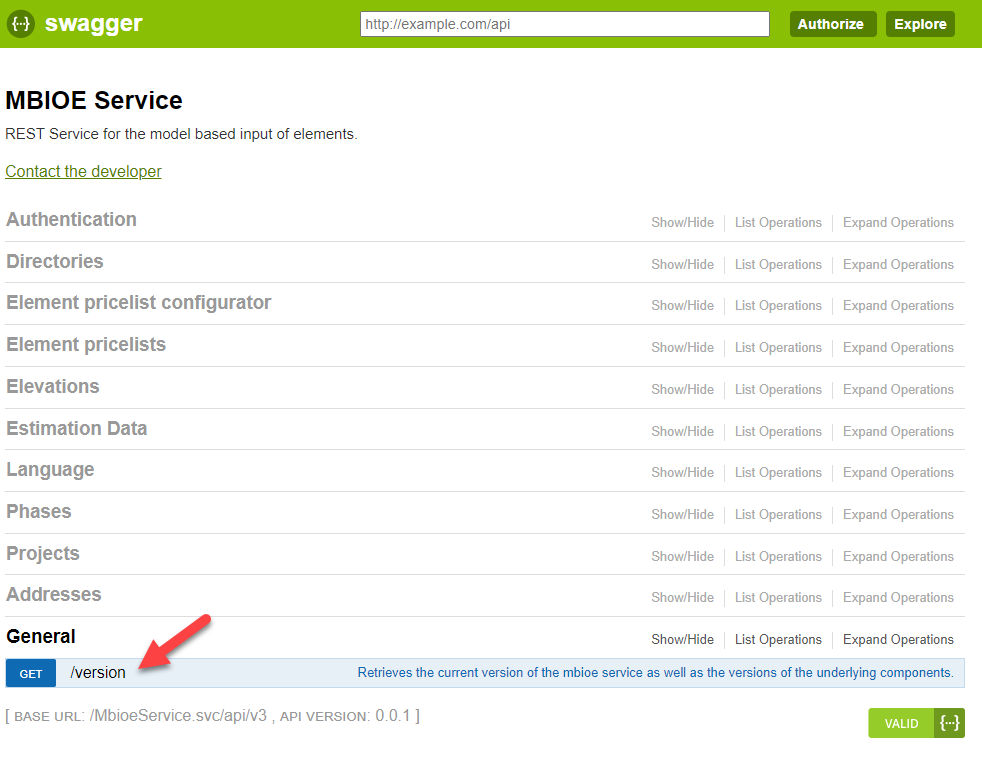
Please forward the result to the contact person to check if you need an update.
The latest version of the service can be found on the Version History page.
Collect log files #
When documenting or reporting an issue it can be helpful to directly attach the most recent log files.
New files will be created for different days and instances of the services with the youngest files having the most recent logs.
Logikal Log Files #
For different Logikal processes different log files are written. The files can be found here: {logikal_installation_folder}/bin/logs
Service Log Files #
If the service is run via IIS it automatically writes log files. If the default installation path is used the logs can be found here: C:\inetpub\wwwroot\MbioeService\logs\LM\W3SVC\2
Is the standard log information not enough? #
By default the log level is ERROR so only actual problems are logged. But when investigating an issue it can be useful to write all logs to the file.
The possible log levels are:
- DEBUG
- INFO
- WARN
- ERROR
Each log level also includes the levels above it, so for the DEBUG level all available logs (DEBUG, INFO, WARN and ERROR) are written.
The log level can be set universally (for Logikal and the MbioeService) in the Logikal installation in the file {installation_folder}/bin/logging.config in the selected line under root > level by changing the value in the quotation marks, e.g. <level value="DEBUG" />.
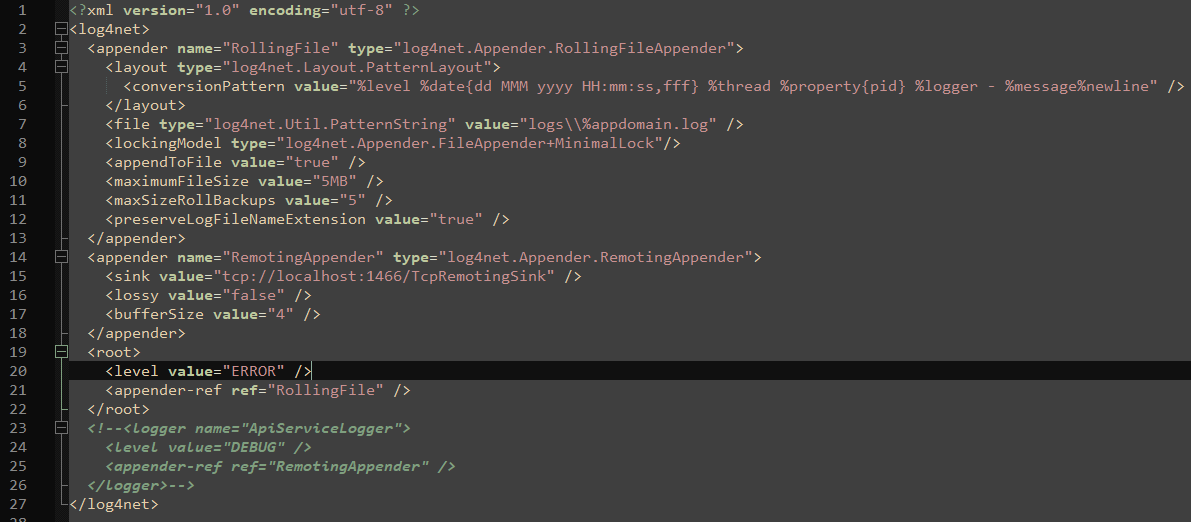
After an investigation is done the log level should always be reset to the default ERROR level.
The log level can be set universally (for Logikal and the MbioeService) in the Logikal installation in the file {installation_folder}/bin/logging.config in the selected line under root - level by changing the value in the quotation marks, e.g. <level value="DEBUG" />.
After an investigation is done the log level should always be reset to the default ERROR level.
The logs are not enough and installation data is required? #
The data can be sent using a Status Report, see Status report - Orgadata Online Help System for information on how to send such a report and what data it contains.
This is always the best way to report an issue since it allows the team to work on the problem in a way that is closest to running it on your system.